Branding Customizations
Why brand your appliance?
If you’re running a public version of the OntoPortal Virtual Appliance, you’ve probably already started to think about how to present your site. Having a unique name, logo, and unifying colors lets users recognize and associate good things with your site. And it makes your site look good!
Even if you have a private ontology for your own research, just a few hours customizing its look and feel can help you distinguish it from BioPortal and other Appliances, and can give your presented materials a distinctive presence. Slides, web pages, and even papers can benefit from the colorful views of your OntoPortal Appliance content.
What gets customized?
It’s up to you. A reasonable first step would be to update the URL of the site, header (the logo, and the color), and perhaps the footer.
It’s only slight more involved to add a favicon (for the browser bar), and a customized welcome and tagline on the home page.
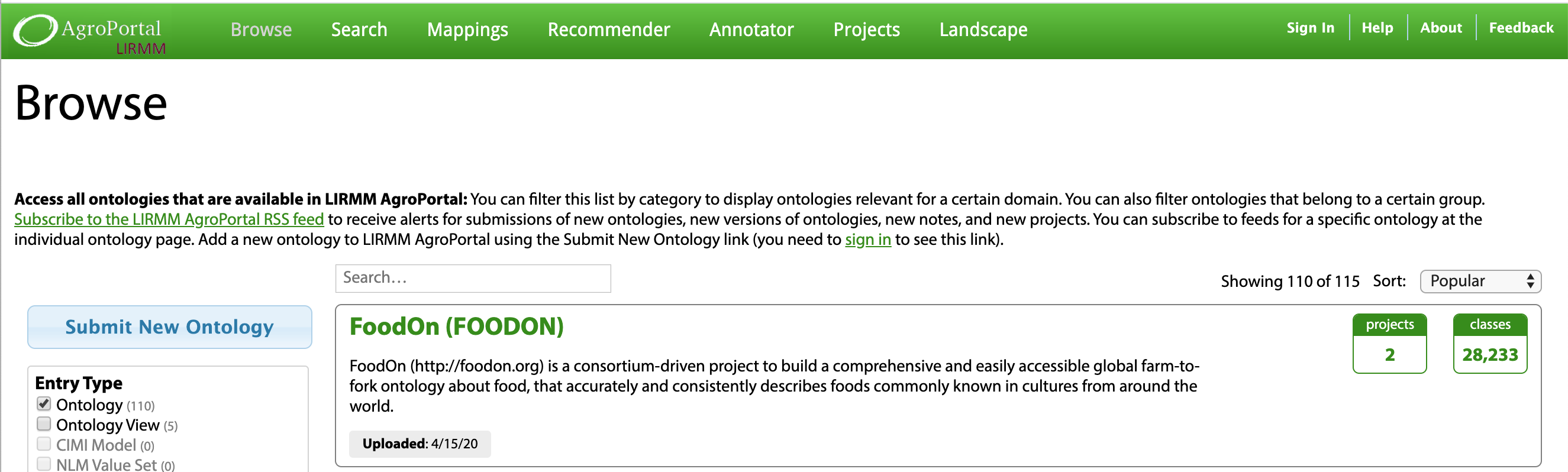
AgroPortal (https://agroportal.lirmm.edu) provides an example where many elements adopt the parent color. (Note this screenshot reflects a pre-3.0-release interface technology.)
How do I do it?
First, review the instructions in the Advanced Configuration section. Our example is based on the Advanced Customization instructions at the end of that document.
1. Set URL for appliance
ssh to appliance and change user to ontoportal.
[centos@appliance ]$ sudo su - ontoportal
edit /srv/ontoportal/virtual_appliance/appliance_config/site_config.rb and set:
$REST_HOSTNAME = 'appliance.ontoportal.org'
$REST_PORT = '8080'
$REST_URL_PREFIX = 'http://appliance.ontoportal.org'
$UI_HOSTNAME = 'appliance.ontoportal.org'
$SITE = 'Demo OntoPortal Appliance'
2. Add custom logo and change the color of the header.
- Copy your custom logo file to
/srv/ontoportal/virtual_appliance/appliance_config/bioportal_web_ui/app/assets/images/logos/bioportal-logo.png - Edit
/srv/ontoportal/virtual_appliance/appliance_config/bioportal_web_ui/app/assets/stylesheets/bioportal.scssSet .navbar background color in bioportal.scss to the value you need.
3. Update tagline on the main page:
- edit
/srv/ontoportal/virtual_appliance/appliance_config/bioportal_web_ui/config/locales/en.ymland modify line containingtagline: your ontology repository for your ontologies
4. Update footer
- Copy original footer from
/srv/ontoportal/virtual_appliance/deployment/bioportal_web_ui/views/application/./views/_footer_appliance.html.hamlto/srv/ontoportal/virtual_appliance/appliance_config/bioportal_web_ui/views/application/./views/_footer_appliance.html.hamland make your modifications.
if /srv/ontoportal/virtual_appliance/deployment/bioportal_web_ui/ is not present then you would need to set up deployment environment by running ./setup_deploy_env.sh
5. Run deployment
Once all configuration changes and file overwrites are set you would need to run deployment scripts. Deployment process described in Advanced Configuration
Do you have some artwork I can use?
You may use the following OntoPortal logo if it helps. (We will be adding some more logos, please contact us for details.)