Setting Up Tools
In these instructions, replace the ‘{my_appliance_ip_or_my_appliance_hostname}’ text with the IP address or domain name that’s assigned to your Virtual Appliance.
Setting up the widgets
! Verify these instructions are still correct.
In addition to the existing widget instructions on your Appliance’s Widgets tab, you must include an additional Javascript variable in order to have the widgets communicate with your instance of the Virtual Appliance.
var BP_SEARCH_SERVER = "http://{my_appliance_ip_or_my_appliance_hostname}";
Test page for the widgets
There is a test page that you can use to see how the various widgets work.
http://{my_appliance_ip_or_my_appliance_hostname}/test/widgets/form_autocomplete.html
Enable reCAPTCHA
To enable reCAPTCHA in OntoPortal, you need to obtain a reCAPTCHA site key and secret key from https://www.google.com/recaptcha/admin/create.
The reCAPTCHA type required for this configuration is V2 (challenge), with the “I’m not a robot” checkbox.
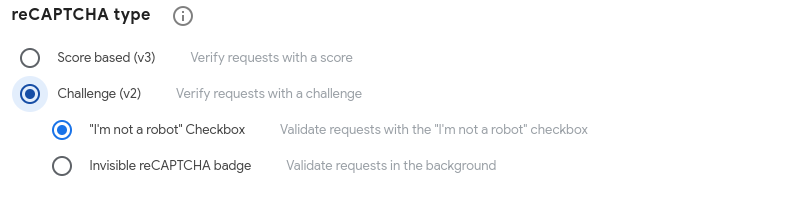
Once you have the keys, go to the root of the bioportal_web_ui project and run the following command:
RAILS_ENV="development" EDITOR="nano" bin/rails credentials:edit --environment development
it will open an editor (Linux nano in this case); add the following lines:
 recaptcha:
       site_key:  <site_key>
       secret_key:  <secret_key>
Save the file and exit. Now you can restart the Rails server, and reCAPTCHA will be available in both the registration and feedback forms.
OntoPortal Utilities
OntoPortal offers a set of scripts for benchmarking and troubleshooting issues with your installation of OntoPortal: ontoportal_utilities
You may need to tweak the software to make it work in your environment, for example if you need two different API keys to access two different systems.